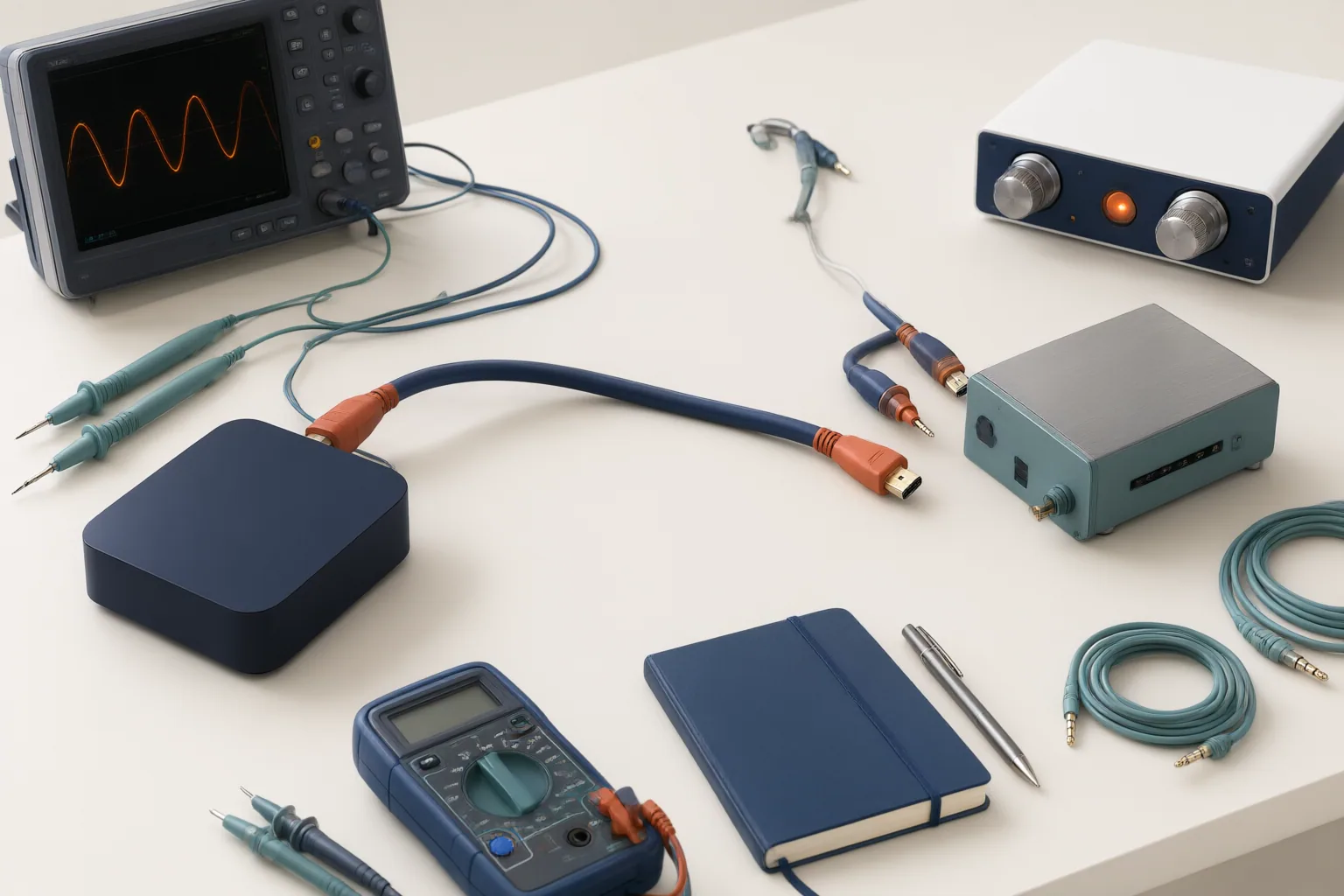
When Apple TV video appears without sound, identify the actual playback device, simplify the HDMI path, and test each connection or setting in a controlled sequence.
First Identify Which Apple TV You Are Troubleshooting
“Apple TV” can refer to different parts of a viewing setup. Apple provides separate support paths for the Apple TV app and for Apple TV 4K or Apple TV HD hardware. Before changing cables or settings, determine which device is actually playing the program.
The Apple TV streaming service is available through the Apple TV app on Apple and Android devices, smart televisions, streaming devices, and the web. Apple says the service does not require an Apple TV 4K box. Consequently, an audio problem in the app might originate with a smart television, phone, computer, or another streaming device rather than Apple TV hardware.
If an Apple TV 4K or Apple TV HD box is connected by HDMI, troubleshooting can focus on that box, its cable, any intermediary equipment, the television, and their audio settings. Keeping the service, app, and hardware distinct prevents tests from being applied to the wrong playback path.
Map the External HDMI Audio Path
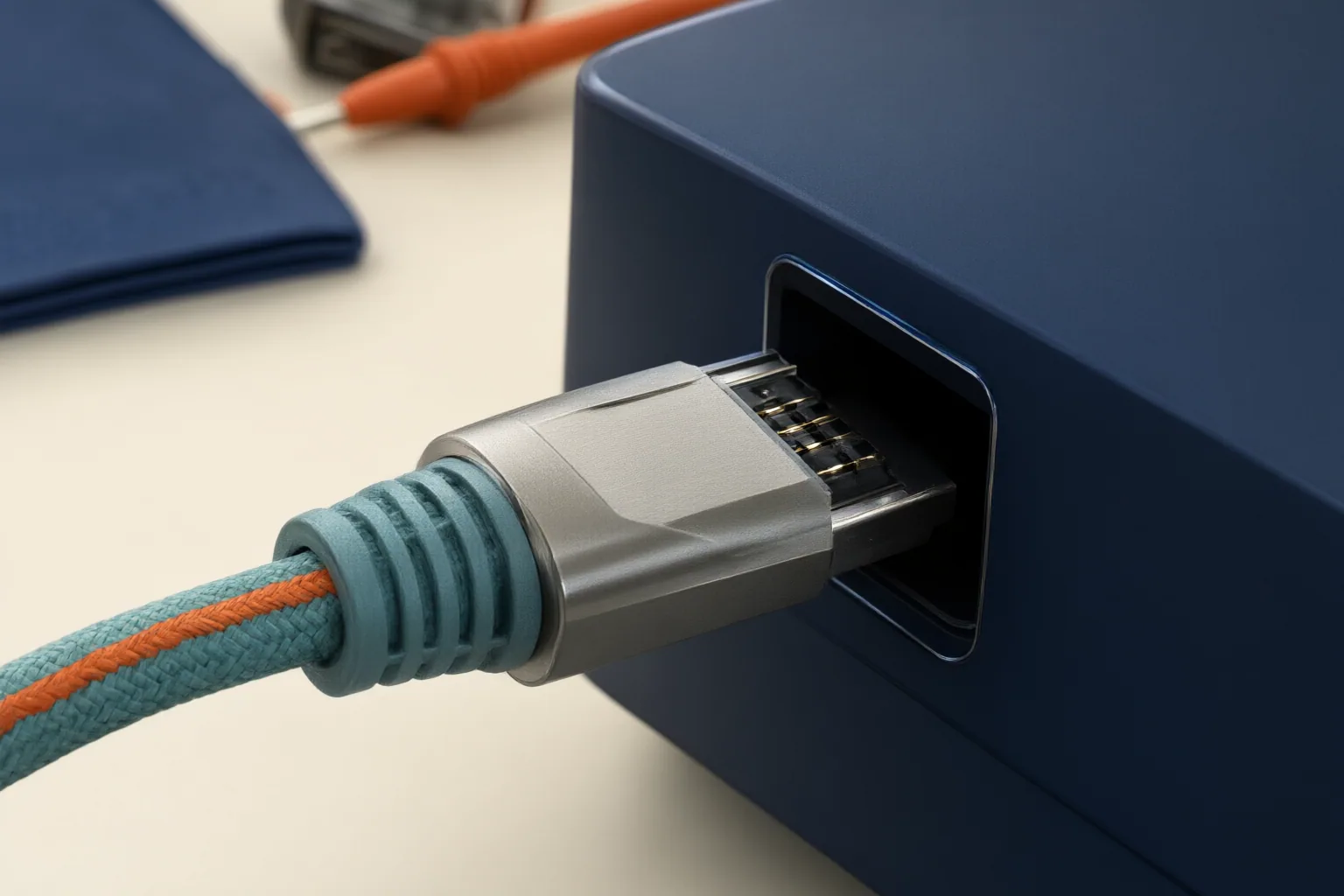
For Apple TV hardware, map only the connection path you can inspect: Apple TV, an HDMI cable, any HDMI switch or receiver, and the television. A simple installation runs directly from the Apple TV to the television. A larger system may place a switch, AV receiver, or hi-fi receiver between them.
Each added stage creates another place where the connection can fail. Apple recommends temporarily bypassing a switch or receiver and connecting the Apple TV directly to the television. If sound returns, the result implicates the intermediary equipment or its part of the connection path. It does not, by itself, identify a particular internal fault.
This external map is enough for practical isolation. The available support material does not establish a complete internal decoding or conversion architecture, so troubleshooting should remain centered on documented connections, output selection, format choices, and downstream processing.
Troubleshoot Video Without Sound Step by Step
Use one change at a time so each result has a clear meaning.
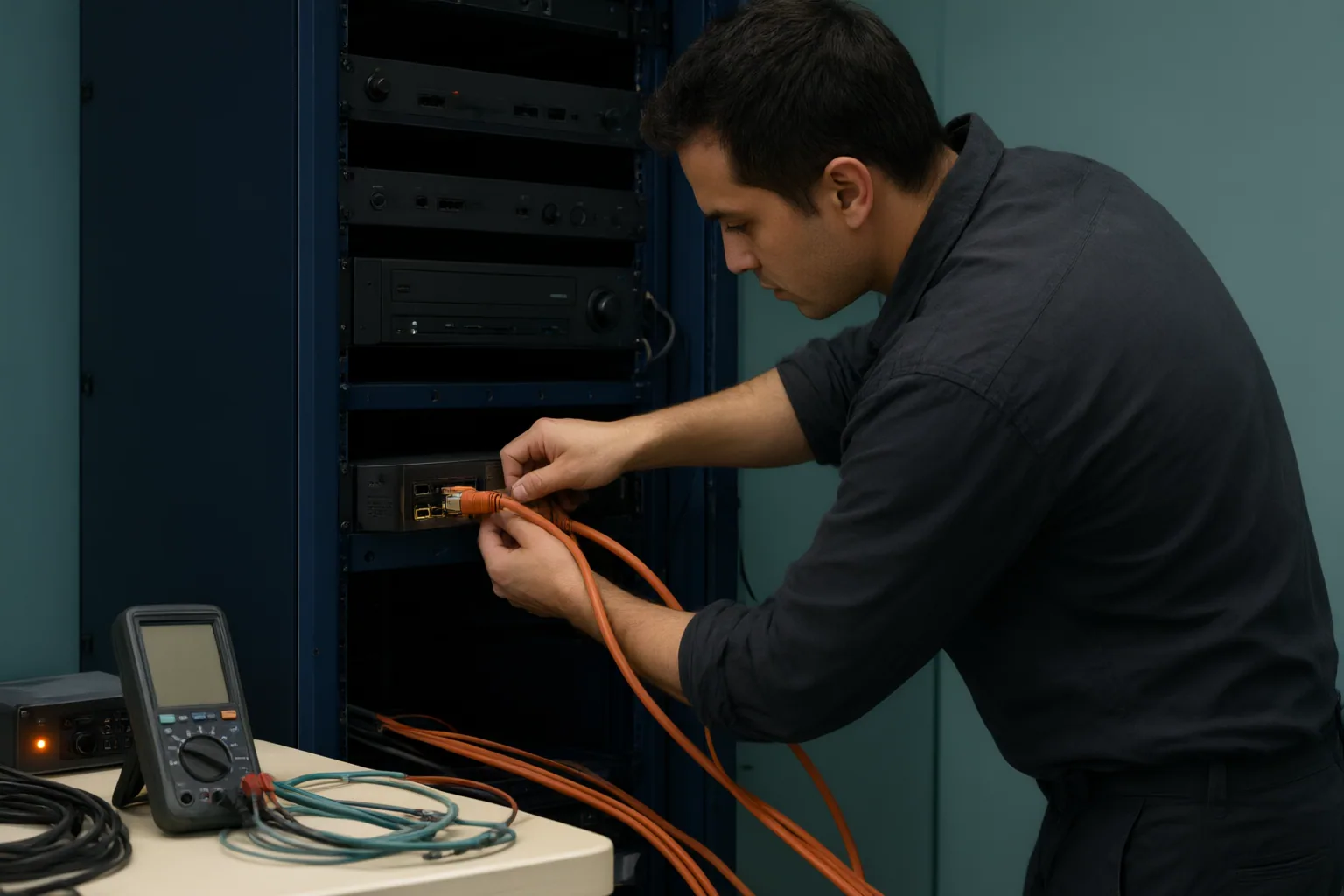
- Reconnect the HDMI cable. Disconnect and firmly reconnect both ends. This checks whether a connection that carries video is nevertheless involved in the missing-audio problem.
- Try another HDMI cable. If reconnecting changes nothing, Apple recommends testing another cable. A successful test points back to the original cable or its connections.
- Simplify the route. If the signal passes through a switch or receiver, connect the Apple TV directly to the television. Sound on the direct route implicates the bypassed stage or the connections around it. If sound remains absent, keep the route simple while checking settings.
- Confirm the selected audio output. Verify that the Apple TV is sending audio to the intended output. This is especially important when the setup offers more than one possible destination.
- Change the audio format. Apple includes trying a different audio format among its no-sound troubleshooting steps. Change only this setting, retest the same content, and note whether sound returns.
- Try 16-bit audio mode. Apple also recommends testing a 16-bit mode. Treat this as a compatibility check: if it restores sound, the result points to a settings interaction somewhere in the connected system, not proof of a specific internal defect.
- Disable downstream processing temporarily. Turn off volume leveling or other audio processing on the television or receiver, then test again. If sound returns, restore processing options individually to identify which setting corresponds with the failure.
After every test, record what changed and whether sound returned. Avoid changing the cable, format, output, and television processing simultaneously, because that would hide which action affected the result.
Conclusion
Start by identifying whether playback comes from Apple TV hardware or from the Apple TV app on another device. For an Apple TV box, reduce the chain to a direct HDMI connection, check the chosen output, and test the documented format, 16-bit, and downstream-processing options. If the direct path works, reconnect the switch or receiver and its associated connections one stage at a time. Begin now by connecting the Apple TV directly to the television and checking whether sound returns.
Disclosures and limitations
- This article was prepared with AI assistance from the supplied Apple support-source research package; its claims are limited to that material.
- No products are recommended, and no affiliate purchasing relationship is presented in this article.
Related reading
Sources
- Co když vaše Apple TV nemá zvuk – Podpora Apple (CZ) — Apple Support
- TV Support – Official Apple Support — support.apple.com
- Apple TV — Apple (Česká republika)